Fixing “SD card error” message for CrossPoint firmware on Xteink X4
I spent a bit of time troubleshooting this last night, so I hope this can save you some time.

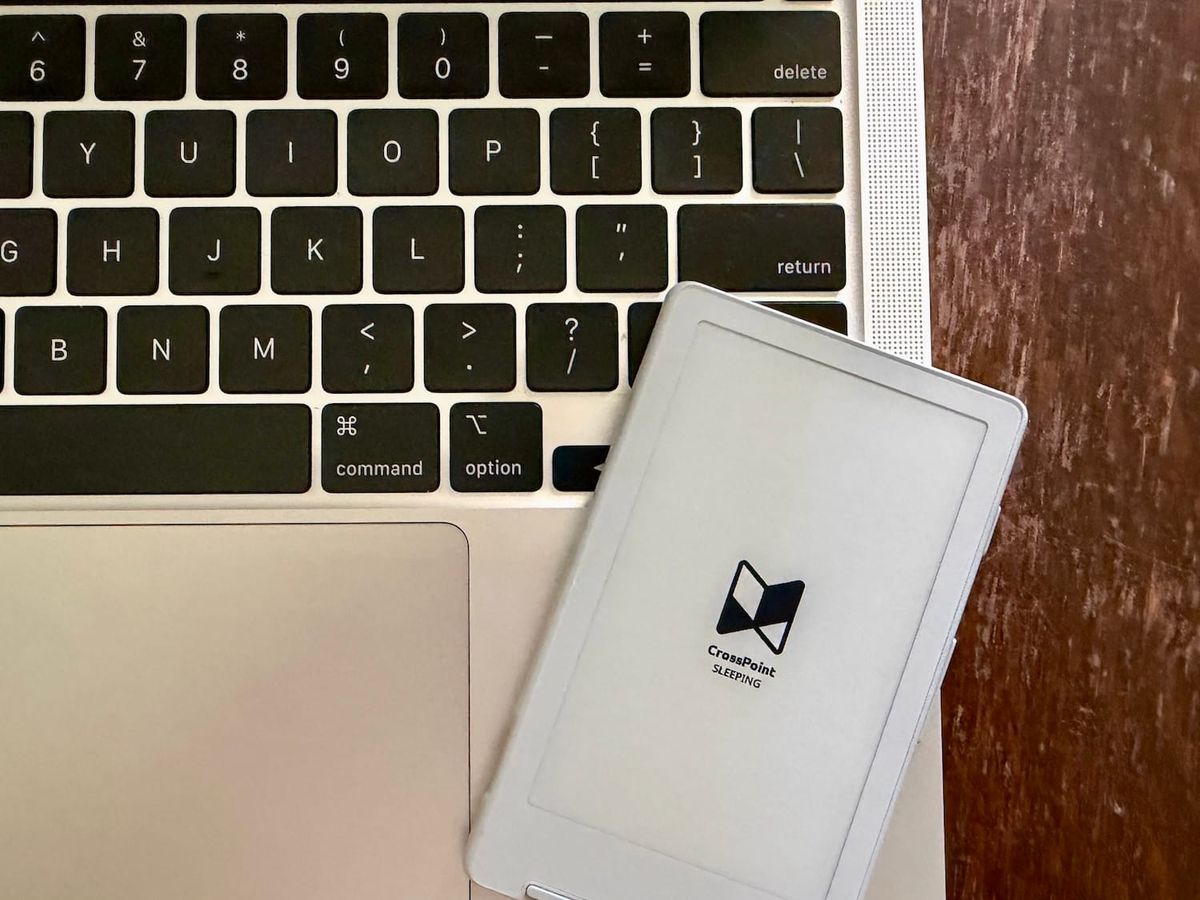
My YouTube algorithm finally got me, and I purchased the viral sensation ereader, the Xteink X4. As an incessant tech tinkerer, I was not satisfied with the purchase alone, of course, so I had to go through the process of installing the open source community custom firmware, CrossPoint. I ran into an issue upon completion that had a very simple solution that was not widely mentioned, so I wanted to publish it here in case you run into something similar.
the problem
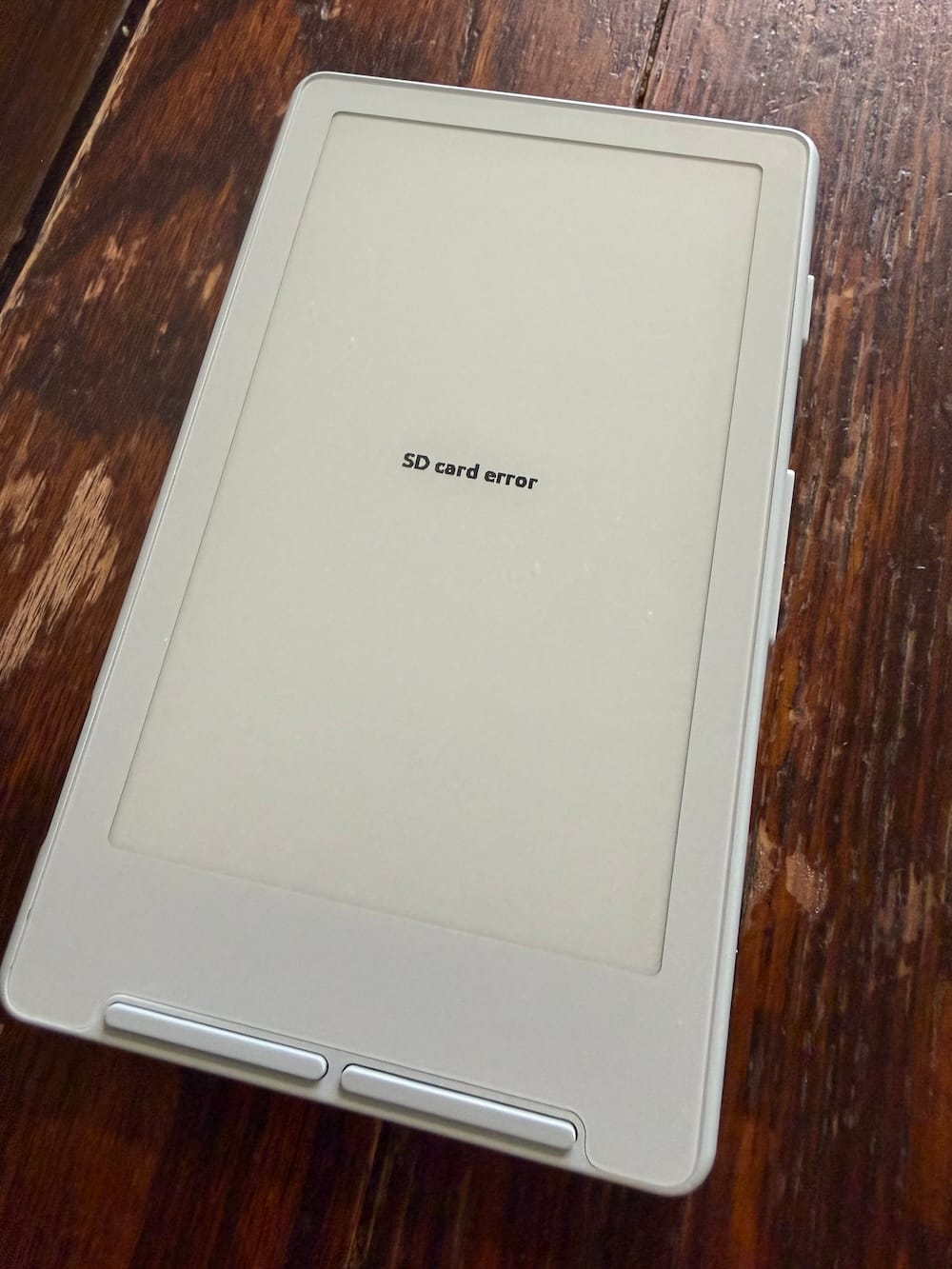
After the firmware successfully flashed, I held the power button for 3-5 seconds as instructed, but instead of booting into the firmware, the screen would only say “SD card error.”
the solution
Here is the solution if that’s all you need before I dive into the details.
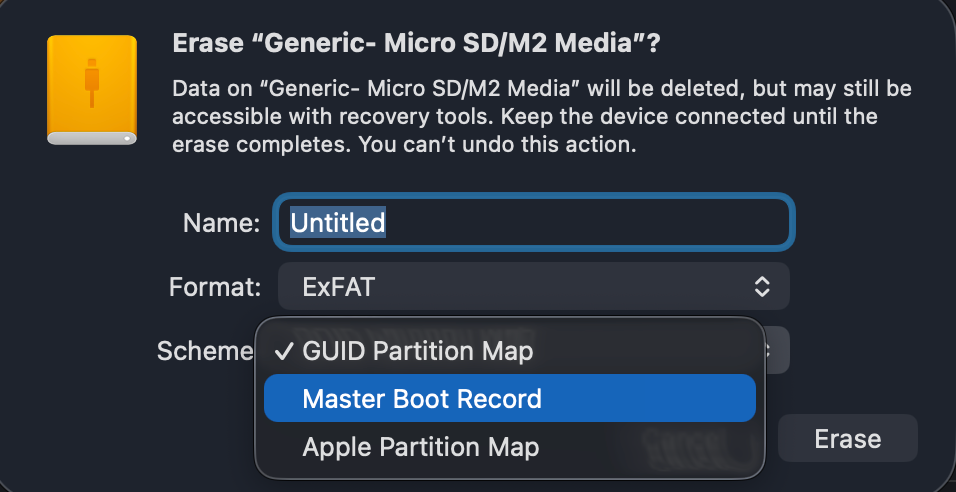
On my initial few card formats, the macOS Disk Utility Erase option defaulted to GUID Partition Map, which I did not know to change as that is not widely mentioned in online tutorials for installing the custom firmware. Once I switched the partition scheme to Master Boot Record, the firmware flash worked flawlessly.
the details
When searching for SD card issues for installing the CrossPoint firmware, one of the consistent proposed solutions is that you are using the original SD card that ships with the X4. I was not in this boat, as I prepared a card I’d already bought: a 32gb PNY Elite card.
For documentation sake, I performed the SD card format in Disk Utility on an M1 MacBook Pro and completed the firmware flash on Google Chrome (Safari is not a supported browser for flashing the firmware).
The firmware flash instructions from CrossPoint are excellent, but they seem to assume the SD card is ready to go (and perhaps that portion of the process is obvious to those familiar with the hardware and firmware scene. In case you might be a novice, and this is your first foray into customizing your devices, I’ll list out the steps for properly formatting the SD card so you can then follow the CrossPoint instructions.
- Do not use the stock SD card that comes with the device, as they are notoriously low quality
- Insert your SD card (given the size of ebooks, I would think a 16gb or 32gb size would give you a lot of headroom) into your computer, likely using a dongle
- Navigate to your computer’s disk management program (Disk Utility on macOS)
- Select the correct drive from the list and reformat it (Erase on macOS)
- On the popup, name the card whatever you want, select ExFAT (FAT32 on a Windows computer is also said to work), and set your scheme to Master Boot Record if it’s not already the default.
- Click Erase or Format, and you’re good to go.
- Insert the newly formatted SD card back into your X4 device and carefully follow the instructions from CrossPoint.
Enjoy your free and open source firmware on a device that technically never has to touch the internet.